Claude Semafor
A desk traffic light for Claude Code sessions. Every session on every paired computer gets its own LED, so a glance tells you whether Claude is working, waiting for you, or done.
1How it works
Claude Code can run external commands at key moments: you send a prompt, Claude runs a
tool, asks a question, finishes its answer. A small script on your computer,
semafor.py, picks up these events and sends them to the semaphore over WiFi,
which lights that session's LED in the matching colour.
Claude Code ──hooks──► semafor.py ──WiFi/HTTP──► Claude Semafor
 (your computer)                             (LEDs + display)
One session, one LED
Three Claude Code windows open means three LEDs lit. When a session closes, its LED goes dark.
Up to 8 computers
Each computer is paired separately; the button switches whose sessions the strip shows.
No cloud
Everything stays on your local network. The script needs only Python 3, with no extra packages.
2The device and the button
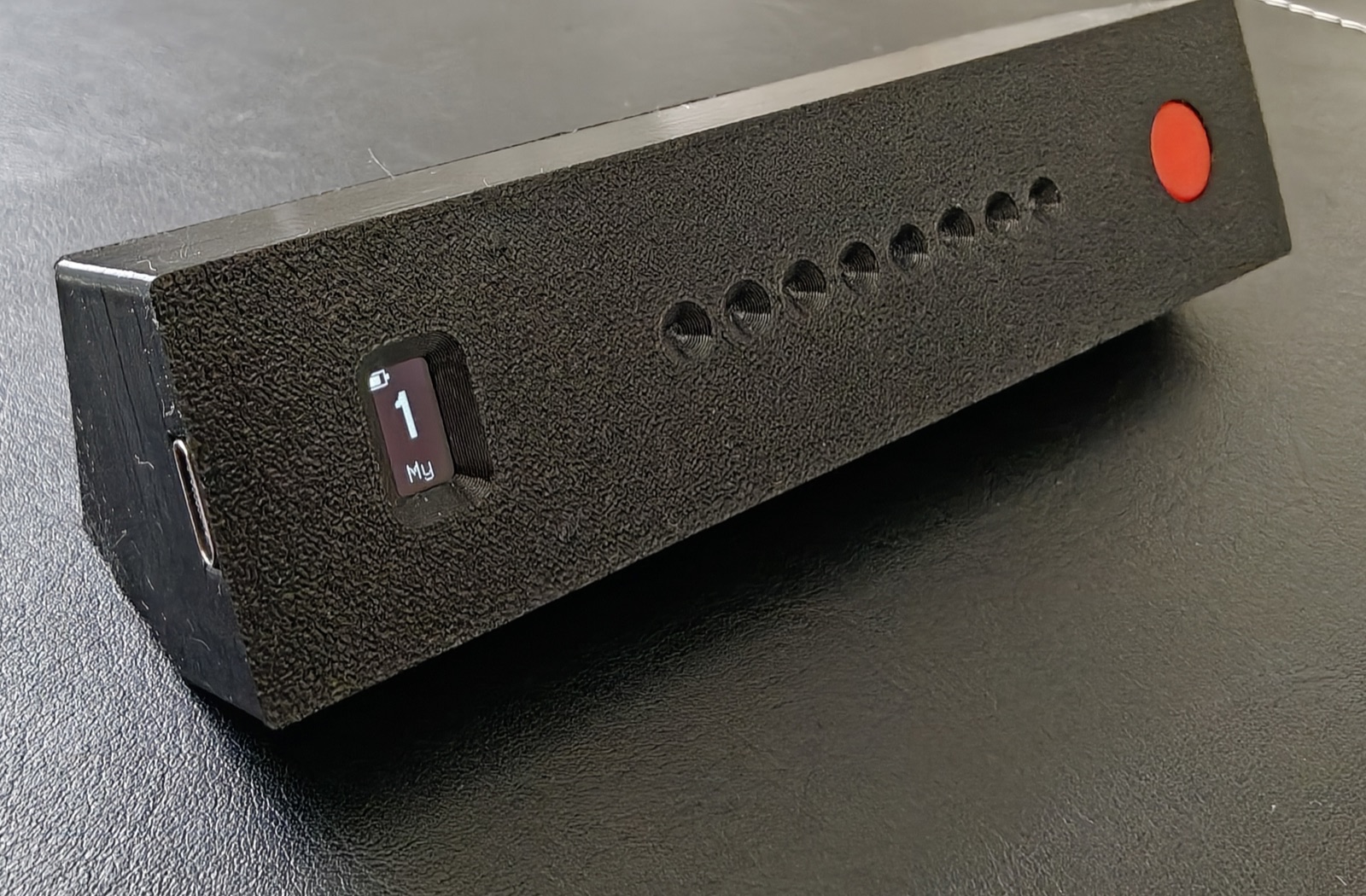
| Part | Purpose |
|---|---|
| LED strip | One LED per Claude Code session of the active computer |
| Display | Number and name of the active computer, battery level, special modes |
| Button | Switch computers, pair, power off, power on |
| USB-C | Charges the built-in battery |
The button
| Action | Result |
|---|---|
| Short press | Show the next computer's sessions. In pairing mode: cancel it. During a “limit” alert: dismiss the alert. |
| Hold 3 s | Opens pairing for 60 seconds. Let go as soon
as PAIRING appears on the screen. |
| Keep holding 5 s more | A 5…1 countdown on the screen while the strip fades out in red, then the device powers off. Release early to cancel. |
| Press while off | Powers the device on. |
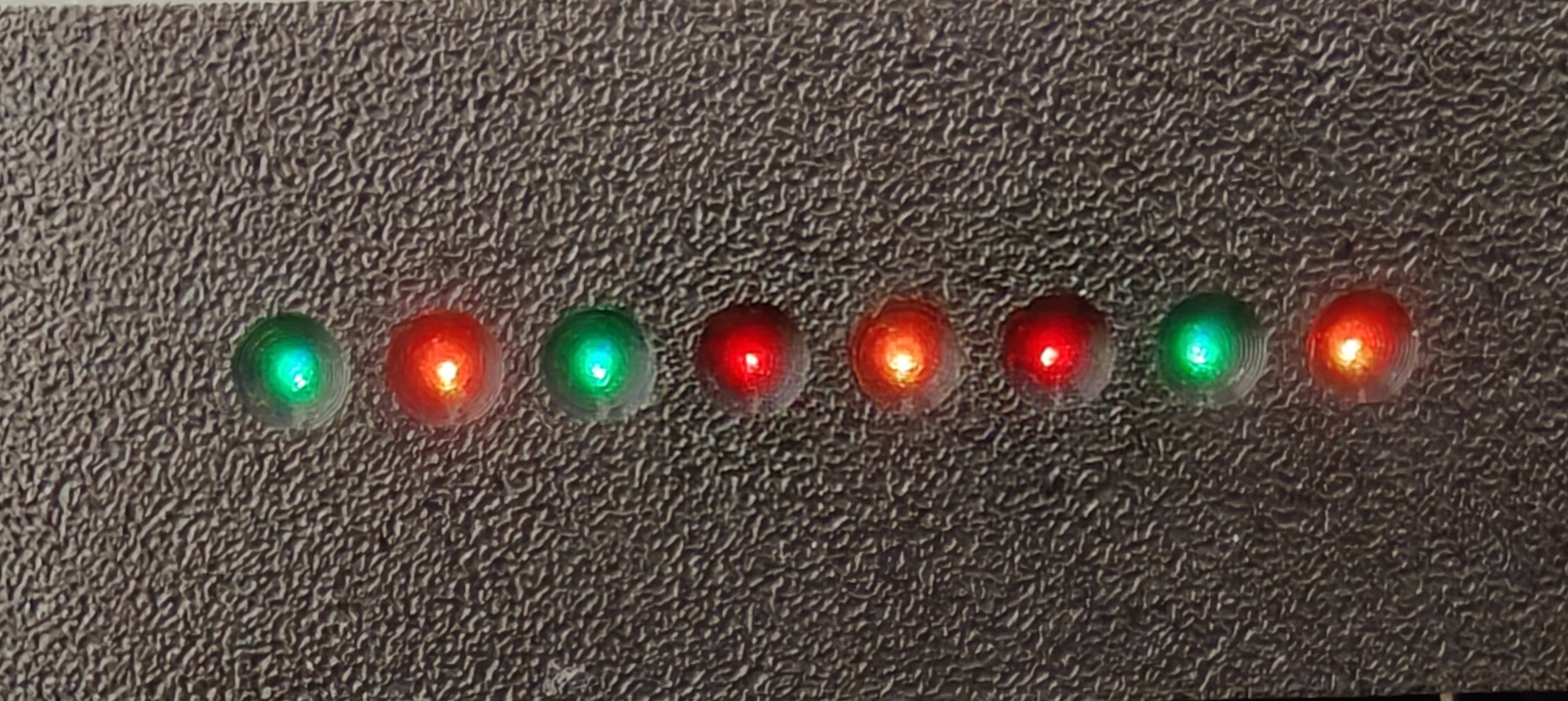
3What the colours mean
Claude Code sessions
| LED | State | When |
|---|---|---|
| Yellow, breathing | Claude is working: processing a prompt, running tools | |
| Red, blinking | You are needed: Claude asked a question or is waiting for permission | |
| Green | The answer is ready; Claude is waiting for your next prompt | |
| Yellow ↔ white | A subagent is running (Claude started a helper) | |
| Off | The slot is free, or the session has been idle for a while (green and yellow turn off by themselves after 5 minutes) |
Special strip patterns
| Strip | Meaning |
|---|---|
| A blue dot sweeping back and forth: connecting to WiFi | |
| An amber wave from the centre: no network, the WiFi setup access point is up (section 5) | |
| Every other LED red, alternating: Claude's usage limit has been reached. A short press dismisses it | |
| The whole strip red and fading: power-off countdown, the button is being held |
4Power and charging
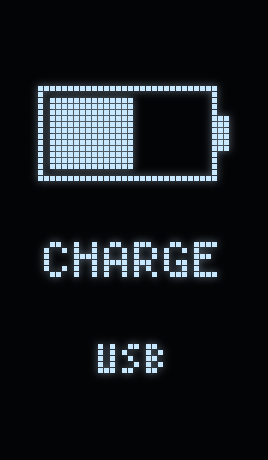
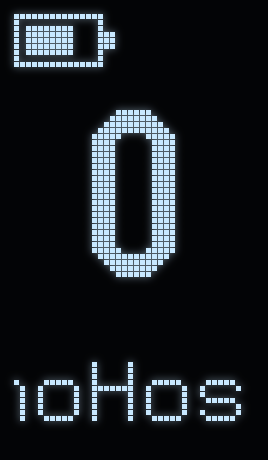
Press the button: the device powers on and starts connecting to WiFi (the sweeping blue dot). The battery icon in the top-left corner of the screen shows the charge level and blinks when the battery is low.
Charge it over USB-C from any 5 V charger. Plugged in while switched off, the device
does not fully start: only the screen comes on, showing CHARGE and then
DONE, while the strip and WiFi stay off. Press the button to switch it on.
On a running device a lightning bolt next to the battery means it is charging, and
DONE means the battery is full.
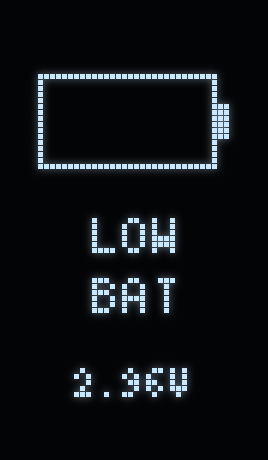
If the battery is deeply discharged, the device shows
LOW BAT and switches straight off. Leave it on the charger for 15–20 minutes
and try again. A deeply discharged battery cannot charge while the strip and WiFi are
running, so the device switches to charging-only mode by itself.
5Connecting to WiFi
On first start the device does not know your network. Within a few seconds (up to half a
minute if it is retrying networks it knew before) it raises its own access point, and
the screen shows WiFi setup.
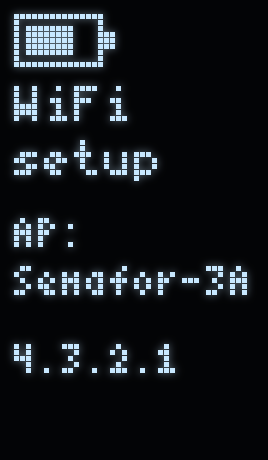 On your phone or laptop, open the WiFi list and join the open network
Semafor-XXXX. Its name is on the screen under
AP:(the screen fits the first 10 characters).- The setup page usually opens by itself. If not, open
http://4.3.2.1in a browser. - Pick your network from the list, enter the password and press
Save & Connect. The device drops the access point and joins your network.
Once connected, the strip goes dark and the screen shows
noHost, because no computer is paired yet.
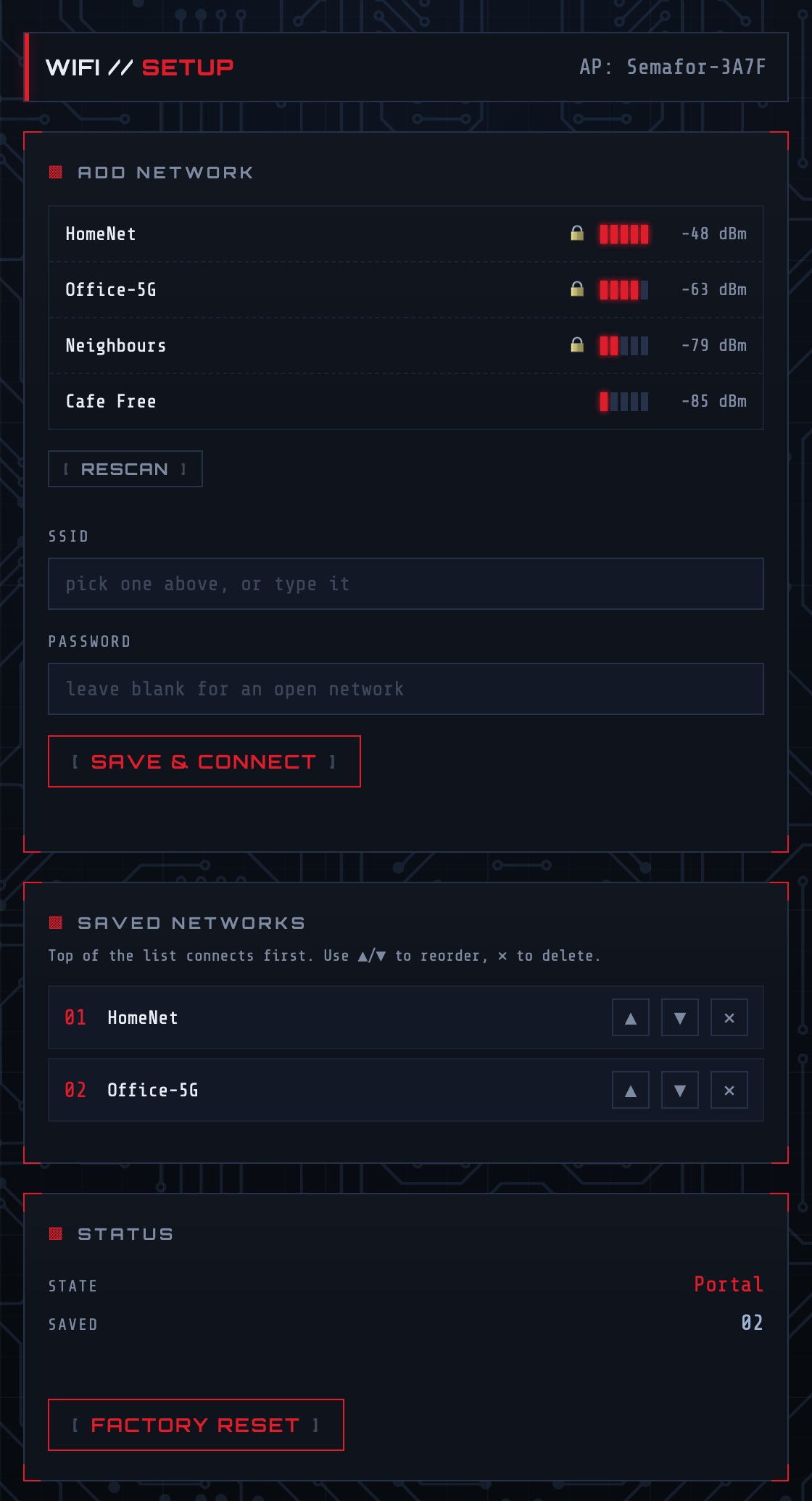
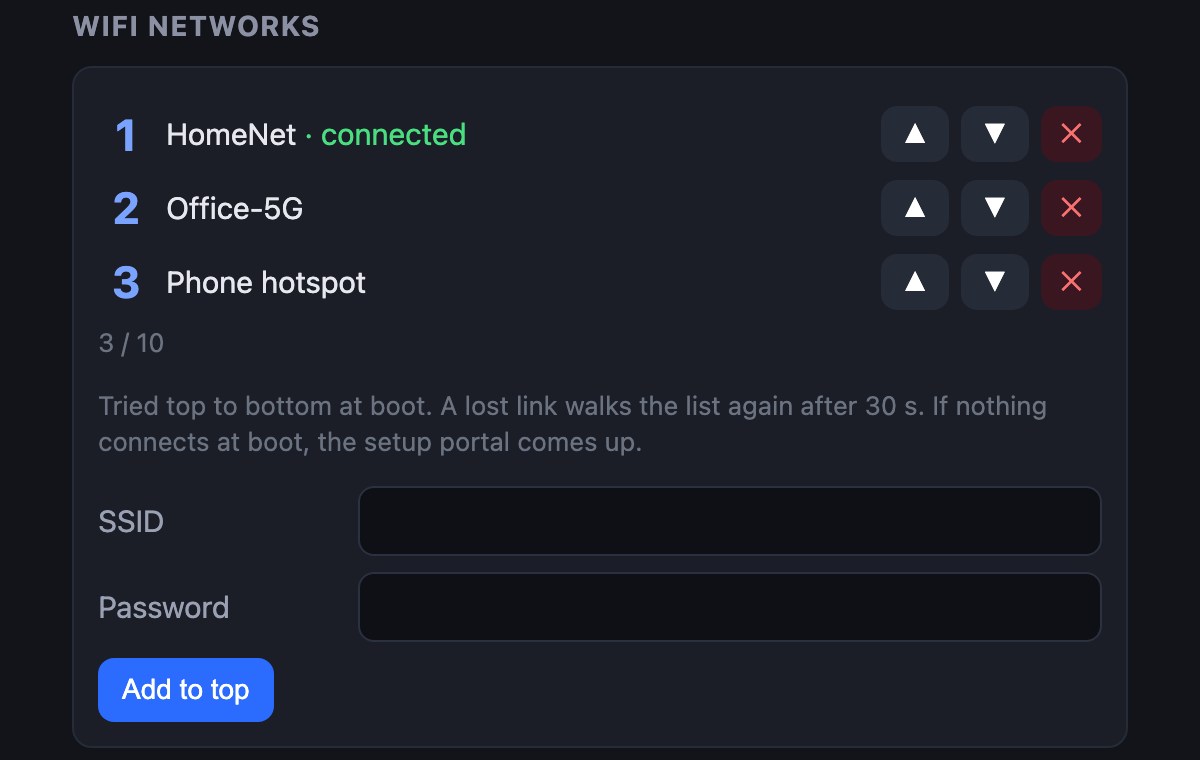
The device remembers up to 10 networks. At power-on it tries the ones it can see, top to bottom. If the link drops, it moves on to another saved network after 30 seconds. You can edit the list later in the web interface.
Use a 2.4 GHz network: the device cannot see 5 GHz ones.
If nobody joins the access point within 5 minutes, the device switches off to save the battery. Press the button to try again.
6Installing on your computer
The computer side is a single file, semafor.py, which registers event
handlers (hooks) with Claude Code. macOS and Linux are supported.
Its source code, with a README and updates, is in the claude_semafor_host repository on GitHub.
You will need
- Claude Code, installed and started at least once.
- Python 3. Check in a terminal:
If the command is not found:python3 --version- macOS:
xcode-select --installorbrew install python; - Ubuntu / Debian:
sudo apt install python3.
- macOS:
- The computer and the semaphore on the same network.
Install
- Get the script:
git clone https://github.com/vovan-io/claude_semafor_host.git cd claude_semafor_host - Install it:
It copies itself topython3 semafor.py install~/.claude/semafor.pyand adds the hooks to~/.claude/settings.json. Your existing settings are kept, and a backup is written next to it assettings.json.bak. Running it again, for example after an update, is safe and creates no duplicates. - Restart Claude Code if it was open: hooks are read at startup.
7Pairing
Pairing gives the computer its own key (token). The device ignores commands without it. You do this once per computer.
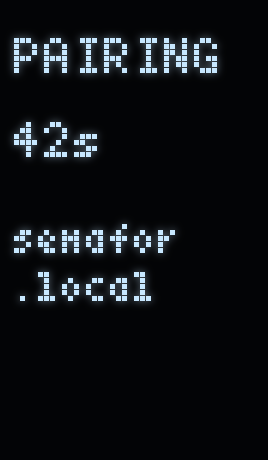 Hold the button for 3 seconds until
PAIRINGand a timer appear on the screen, then let go straight away. Holding on starts the power-off countdown.- Within 60 seconds, run on the computer:
On success you will see:python3 ~/.claude/semafor.py registerpaired as host_id=0 (name=macbook) via 192.168.1.108 (mdns semafor.local), leds=8 saved -> /Users/you/.claude/semafor.json - Pairing mode closes by itself, and the screen shows the computer's number and name.
Your own name on the screen: register --name work. About 4
characters fit; a longer name scrolls.
If semafor.local cannot be found (on some networks, and on Linux
without Avahi), give the device's IP address instead:
register --host 192.168.1.108. Your router shows the address.
8Checking it works
Run the first LED through all the colours:
python3 ~/.claude/semafor.py testThe LED should go yellow, red, green, then off. Then open Claude Code and send any prompt: while Claude works the LED breathes yellow, and it turns green when the answer is ready.
To see the state of every computer and session:
python3 ~/.claude/semafor.py status9Several computers
Repeat installation and pairing on each computer, up to 8 of them. The strip shows the sessions of one computer, the active one, whose number and name are large on the screen.

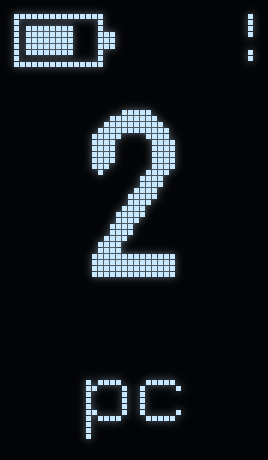
- A short press switches the strip to the next computer.
- If Claude is waiting for you on an inactive computer, a
!appears in the top-right corner of the screen. Press the button until you see the red LED. - Rename a computer, make it active or remove it in the web interface.
10Web interface
From any device on the same network, open
http://semafor.local (or the
semaphore's IP address) in a browser.
Computers
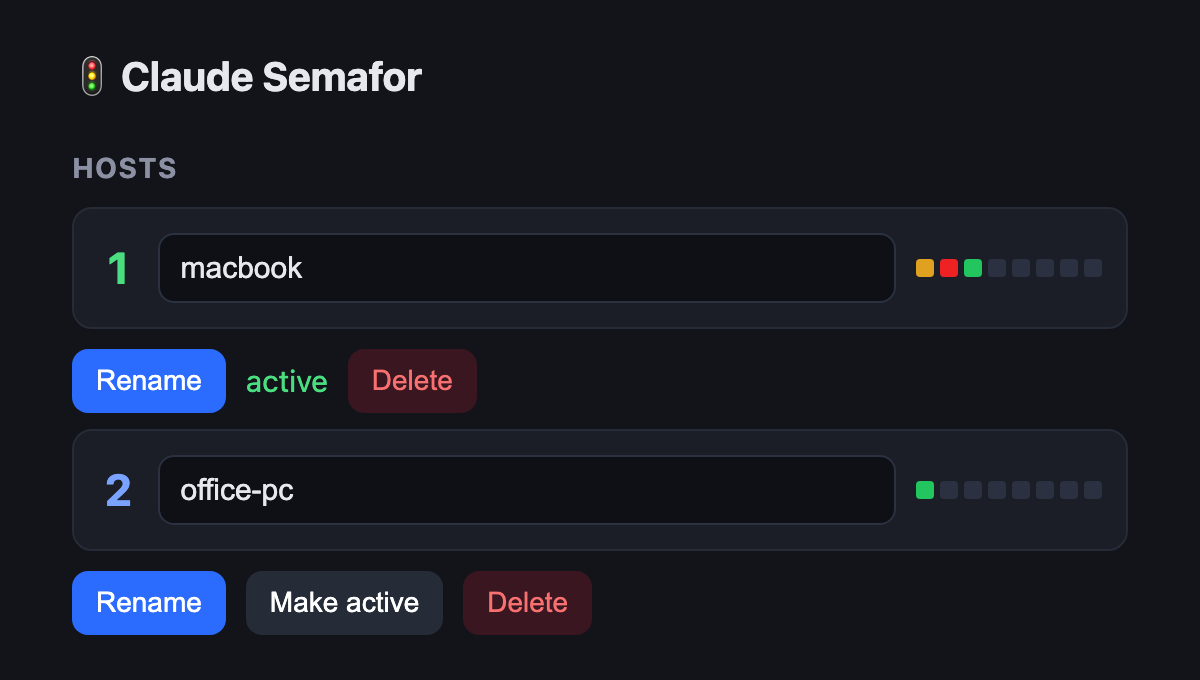
Device settings
WiFi networks
Power and diagnostics
The Power section shows the battery charge and voltage. In Diagnostics, Run self-test reboots into a hardware check: a rainbow runs along the strip and a checkerboard scrolls on the screen. Press the button to leave it.
11Display screens




12Sleep and power saving
The device switches itself off to save the battery:
- after 60 minutes with no Claude Code activity;
- after 5 minutes in WiFi setup mode if nobody joins;
- when the battery is critically low;
- on request: hold the button for 3 + 5 seconds.
A short press of the button switches it back on. Paired computers and WiFi networks are remembered, so there is nothing to set up again.
13Firmware updates
Ready-made firmware files are published on the Releases page. Updates go over WiFi; no cable is needed.
- Download
firmware.binfrom the latest release. - Look up your computer's token:
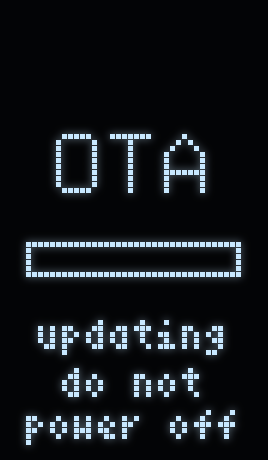
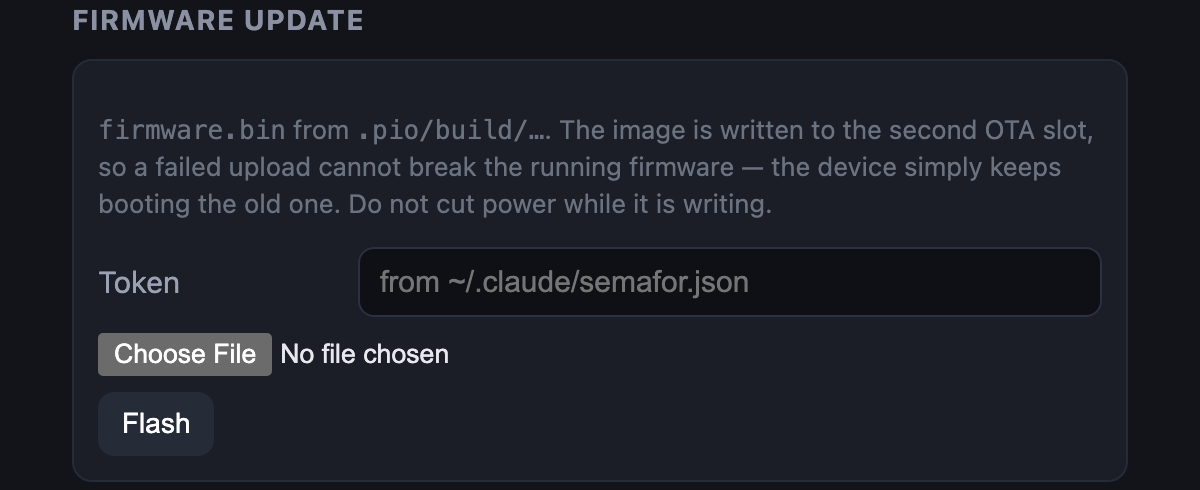
The browser remembers it, so you enter it only once.python3 -c "import json,os;print(json.load(open(os.path.expanduser('~/.claude/semafor.json')))['token'])" - In the web interface, paste the token into Token, choose the file and press
Flash. The screen shows
OTA, and about half a minute later the device restarts on the new firmware.
An interrupted update breaks nothing: the new firmware is written to a second memory area, and until it checks out the device keeps starting the old one.
14Troubleshooting
| Problem | What to do |
|---|---|
pair failed from register |
The pairing window lasts 60 seconds. Hold the button for 3 seconds again and run
the command right away. If it still fails, give the address with
--host <IP>. |
| LEDs do not react to Claude Code | Restart Claude Code after install. Check the link with
semafor.py test. Make sure the screen shows the right computer: a short
press switches between them. |
| The blue dot keeps sweeping | The device cannot join a saved network. Check the router and that the network is
2.4 GHz. If the network changed, wait: the Semafor-XXXX access point
will come up. |
| New router or WiFi password | Switch the device on: when it cannot find a network, it raises the setup access point by itself (section 5). |
semafor.local does not open |
Use the device's IP address (shown in your router, or as addr in
~/.claude/semafor.json). |
| An LED is stuck yellow or green | If a session ended abnormally, its LED turns off by itself after 5 minutes. |
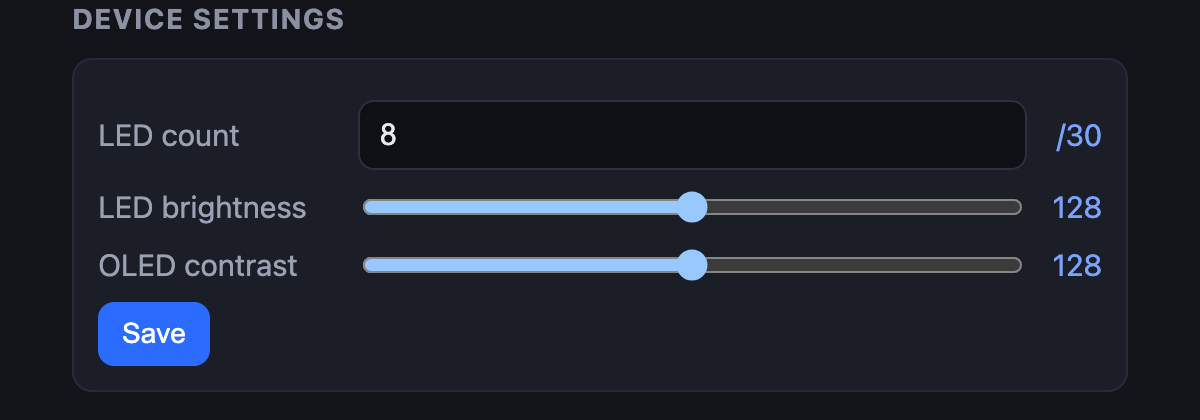
| Too few or too many LEDs light up | Set the right LED count in the web interface, then run
register again so the computer learns the new number. |
| The device will not switch on | Charge it for 20 minutes. If it shows LOW BAT, the battery is deeply
discharged and needs longer. |
| Removing it from a computer | semafor.py unpair forgets the pairing. Remove the hooks from
~/.claude/settings.json by hand (the entries mentioning
semafor.py). |
15Command reference
Every command is python3 ~/.claude/semafor.py <command>. Any of them
can target a specific address with --host 192.168.1.108.
| Command | What it does |
|---|---|
install | Copies the script into ~/.claude and adds the hooks |
register [--name N] | Pairs this computer (device in PAIRING mode) |
status | State of every computer and session |
config | Shows the device settings |
config --leds 8 | Sets the LED count |
config --bright 128 --contrast 100 | Strip and screen brightness (1–255) |
test | Runs the first LED through all the colours |
unpair | Forgets the pairing on this computer |
Claude Semafor · firmware 1.2.0